Wednesday, August 29, 2012

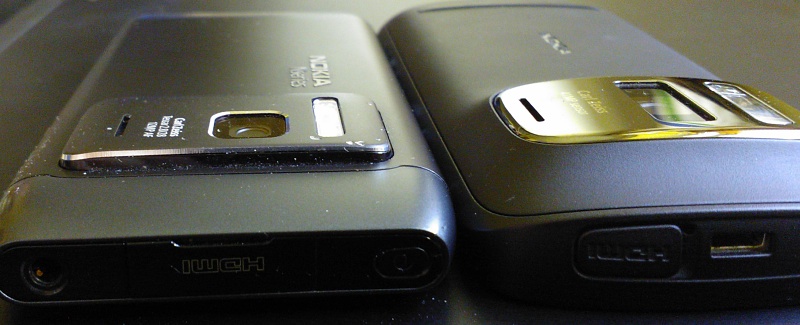
LightReading : Ten Reasons to opt for the Nokia N8 over the 808

Steve Litchfield from All About Symbian has posted an article emphasizing why the two year old Nokia N8 is still relevant in the current smartphone scenario. Nokia 808 PureView has clear advantages over N8 in many ways, and it is undoubtedly the best Symbian experience ever. But there are certain little things that are lost as technology moves forward. The article shows the little advantages of N8.
Steve quotes,
But, as ever in the mobile world, every device tends to bring a few steps forward and at least one step backwards, i.e. progress is made, but the older devices often have a few facets which are better - this is normal. 


Monday, August 27, 2012

Nokia Belle Refresh update now rolling out, Symbian users rejoice

The long awaited Symbian Nokia Belle Refresh update is now available to download for the first generation Symbian devices. The list includes N8, E7, C7, X7, C6-01, and Oro. The update is available over the air, or through Nokia Suite as well as from Nokia Software Updater. The update is characterized by version number 111.40.1511. The software update for Nokia E6 is due next week bearing version number 111.140.0058.

The rough changelog is as follows:

  • Redesigned browser with support for HTML5 web apps and offline viewing
  • More clock and toggle widgets
  • Notes and Gallery widgets
  • Music player with enhanced functionality like lyrics support
  • Nokia N8 will have new image editing apps
  • Microsoft Office Mobile 2.01 and Nokia Maps 3.09 included in firmware
  • Nokia Social 1.5
  • New Nokia Store


Different Types of SD Cards

Last week, the aged memory card in my phone died, and I had no option to buy a new one, as the warranty period of the last one has ended a long time ago. So I was searching for 'microsd card' on eBay, and I got literally confused which one to buy. Because there seemed to be so many different types of classes of microSD cards, I had to go into R&D mode. After searching on Wikipedia and Nokia Support, I finally made up my mind to buy a class 4 microSD HC card with 16GB memory.

Sunday, August 26, 2012

Infographic : Mobile Marketing

CJ from UnleashThePhones has shared an interesting infographic about mobile marketing. Take a look:


How to install WhatsApp Messenger on a PC or Laptop using Bluestacks

WhatsApp is a great cross-platform real-time chat service, and many people are using it on their cellphones. However, if you don’t have a smartphone, or just don’t want to spend money on a data plan; you now can try WhatsApp on your PC thanks to Bluestacks App Player.

Bluestacks is an Android emulator for Windows and Mac. It is currently in beta testing and absolutely free.
Step I : Go to http://bluestacks.com/
You will be greeted by a screen similar to this:
Step II : Download and install Bluestacks App Player. If you want to install it on several computers, I will recommend you to download the “different type of installer”.

Step III : You may need .NET framework 3.5 in your PC before you install Bluestacks. If Bluestacks installer gives an error and wants you to download .NET framework 3.5, click here to download.
Step IV: After installing Bluestacks, launch it from Desktop or Taskbar. In the Social tab, you can find WhatsApp. Click on it and it’ll download and install inside Bluestacks.
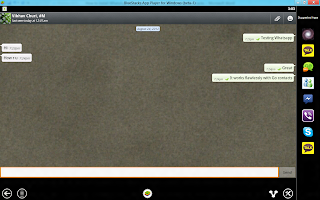
Step V: Set up WhatsApp at the first start by providing your mobile number (or land line will also do in this case). The app will try to send an SMS to your device, but as there is no way to get that SMS on your PC, it’ll fail. Don’t worry. The timer will eventually reach to zero, and after that click on the option to send the verification ID by calling. Keep the phone within your reach. You’ll get a computer generated call providing you with verification ID. Enter that ID in WhatsApp and it’ll be activated.

Step VI: Install Go Contacts EX on Bluestacks for contact information of all your buddies. If your contacts are synchronised with Gmail, then you can copy them on Bluestacks in a few clicks. Or you can manually add contacts, if you have a plenty of time to kill.

Note: WhatsApp can only send messages to only one device. The user is identified by the phone number. So if you register for WhatsApp on your PC, the mobile client will no longer get messages. I’d recommend using your land line (or any other) number if you want to keep receiving messages on both devices.
If you wish to discontinue using PC and want to go back to using WhatsApp on mobile again, remove it from both devices and reinstall WhatsApp on mobile.

Note: Bluestacks can also be used to install many other android apps and games, so if you don’t own an android device, you can go ahead and try it on your PC! Have fun..!